Installing custom applications outside of the official Apple App Store often involves enterprise distribution methods. While these methods are essential for businesses and internal development, they frequently trigger security warnings designed to protect the integrity of the iOS ecosystem. Two of the most common hurdles encountered during this process are the Untrusted Enterprise Developer alert and the Integrity Check Failed notification.
These errors are not necessarily indicative of a malicious threat, but rather Apple’s way of verifying the origin and security status of software that has not undergone the standard App Store review process. Understanding why these errors occur is the first step toward resolving them. Whether you are an employee trying to access a corporate app or a developer testing a beta build, this guide outlines the technical steps required to bypass these restrictions safely and effectively.
Understanding iOS Security Protocols for Third-Party Apps
Why iOS Restricts Enterprise Applications
Apple enforces a strict sandbox environment to maintain user security and privacy. When an application is developed for enterprise use, it is signed with a specific distribution certificate rather than a developer account linked to the App Store. Because these apps are not hosted on Apple servers, the operating system cannot automatically verify their authenticity.
The system requires the user to manually intervene to confirm that they trust the source of the software. This design prevents unauthorized or potentially harmful software from running automatically. Without this manual trust handshake, the iOS kernel prevents the executable code from launching, which is the primary cause of the security alerts users face.
The Role of Device Management Profiles
Enterprise apps are managed through provisioning profiles that act as digital passports for the software. These profiles contain information about the developer’s identity, the expiration date of the certificate, and the specific devices authorized to run the application. When a profile is missing or improperly configured, the system flags the app as untrusted.
Administrators distribute these profiles via Mobile Device Management (MDM) solutions or direct download links. If the profile is removed or if the certificate associated with the developer has been revoked by Apple due to policy violations, the application will cease to function immediately. Maintaining an active and valid profile is crucial for the continuous operation of non-store applications.
How to Fix the Untrusted Enterprise Developer Error
Step-by-Step Manual Trust Configuration
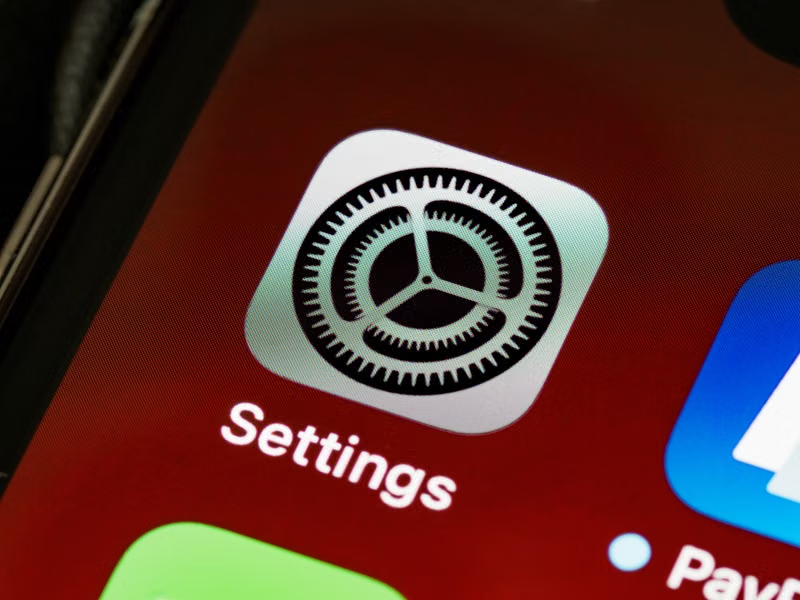
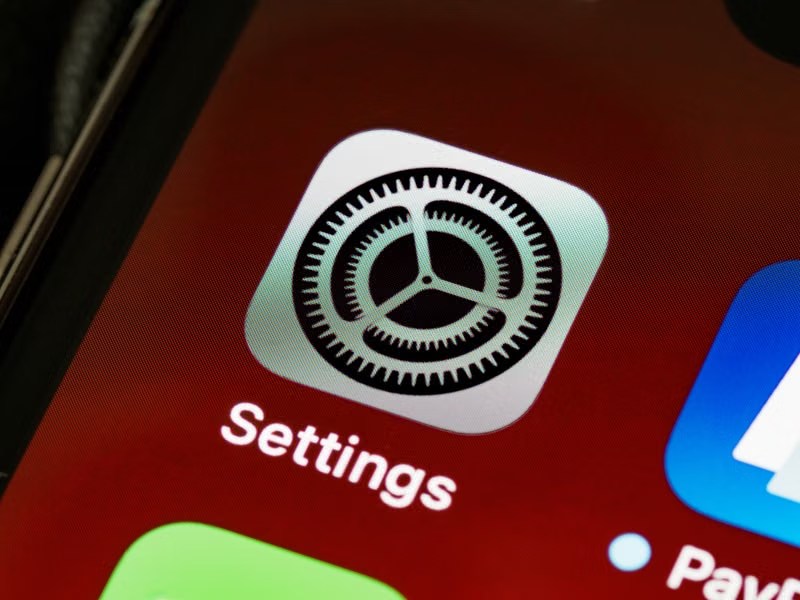
The Untrusted Enterprise Developer message appears when you attempt to open an app for the first time. To resolve this, you must navigate to your device settings to grant manual permission. Open the Settings app and proceed to the General section. From there, locate the option labeled VPN & Device Management.
Inside this menu, you will see a list of enterprise apps currently installed on your device under the Enterprise App header. Select the specific developer name associated with the app you are trying to open. A prompt will appear asking you to trust the developer. Tap the Trust button to confirm your choice. Once completed, the application will launch without further security interruptions.
Troubleshooting Failed Trust Attempts
If the Trust button is missing or does not respond, there are usually underlying issues involving network connectivity or expired certificates. Ensure that your device is connected to the internet, as the phone needs to reach Apple servers to verify the certificate’s current validity. If the certificate has expired, no amount of manual configuration will make the app work.
In cases where the device is managed by a corporate MDM system, the ability to manually trust a developer might be restricted by an IT administrator. If you find that the toggle is greyed out or inaccessible, you must contact your organization's IT department to request a profile update or the deployment of a new, valid certificate to your device.
Resolving Integrity Check Failed Errors
The Connection Between Network and Installation
The Integrity Check Failed error often occurs during the installation phase rather than the launch phase. This error signifies that the iOS installer could not verify the package signature against Apple’s servers. This is frequently caused by a weak or filtered network connection that blocks the necessary communication between your iPhone and the Apple signature servers.
To mitigate this, try switching from a cellular data connection to a stable Wi-Fi network. If you are behind a corporate firewall or using a VPN, temporarily disable them. These security layers sometimes intercept the handshake required for the integrity check, causing the installation to time out or fail entirely.
Managing Expired or Revoked Certificates
Apps often fail the integrity check if the developer certificate has been revoked by Apple. This happens when a developer violates the Enterprise Developer Program guidelines, such as distributing public-facing apps through an enterprise channel. When a certificate is revoked, the app becomes permanently invalid on all devices that have it installed.
If you suspect the certificate has been revoked, the only solution is to wait for the developer to provide a new version of the app signed with a valid, active certificate. You will need to delete the current version of the app entirely before attempting to install the new version, as residual files from the revoked version can cause installation conflicts.
Comparison of Installation Errors
| Error Type | Primary Cause | Solution |
|---|---|---|
| Untrusted Developer | Manual trust required | Settings > General > Device Management |
| Integrity Check Failed | Network block or revoked cert | Switch network, delete and reinstall |
| App Won't Open | Expired certificate | Contact developer for update |
Managing Enterprise Profiles and MDM
Understanding MDM Restrictions
Mobile Device Management (MDM) allows companies to control device security remotely. If your device is enrolled in an MDM program, the administrator has the authority to push or remove enterprise apps at will. In this environment, you may not be able to manually trust apps because the policy is managed centrally by your company’s server.
If you are experiencing issues with corporate-issued apps, do not attempt to bypass MDM restrictions, as this may lead to your device being quarantined from corporate resources. Always report these errors to your IT helpdesk, as they can push a fresh configuration profile that resolves the communication error between your device and the enterprise server.
Clearing Corrupted Installation Files
Sometimes, an app may become corrupted during the download process, leading to persistent integrity check errors. To resolve this, perform a hard delete of the application. Go to your home screen, long-press the app icon, and select Remove App. After deletion, restart your iPhone to clear the cache.
Once the device has rebooted, attempt the download again from the original distribution source. Using a fresh download link ensures that you are receiving the most recent version of the provisioning profile, which is essential if the developer has recently updated their signing credentials to avoid expiration.
Best Practices for Enterprise App Maintenance
Keeping Apps and Certificates Updated
Enterprise certificates are typically valid for one year. Developers must renew these certificates annually, which requires users to potentially reinstall or re-trust the application. Proactive maintenance involves monitoring for app updates provided by your organization and ensuring your iOS version is compatible with the latest enterprise requirements.
Always keep your iOS version updated. Apple frequently updates the security framework for enterprise deployments, and running an outdated version of iOS can result in compatibility issues with newer signing standards. A combination of a current OS and the latest app build is the best defense against installation failures.
When to Contact Support
If you have followed all the steps above and the errors persist, there is likely an issue with the developer’s distribution channel. This is common if the app is a beta version or a custom-built tool that has not been updated in several months. Reaching out to the development team or your IT department is the final step in troubleshooting, as they may need to re-sign the application package.
Conclusion
Resolving Untrusted Enterprise Developer and Integrity Check Failed errors is a manageable process once you understand that these alerts are security features rather than system defects. By navigating the device management settings to establish trust, ensuring a stable network connection, and verifying that the developer certificate remains active, you can successfully deploy and run enterprise applications on your iOS device. When these self-service steps fail, coordinating with the appropriate administrative or technical support teams ensures that your software remains compliant and functional.
Frequently Asked Questions
Why can't I see the Device Management option in Settings?
If the Device Management option is missing, it means no enterprise profiles are currently installed on your device. Once you successfully install your first enterprise app, the menu will automatically appear under General settings.
Is it safe to trust an enterprise developer?
You should only trust an enterprise developer if you personally know the source and trust the organization providing the app. Trusting unknown developers can expose your device to malware or unauthorized data access.
Can I fix Integrity Check Failed by changing my date and time?
While changing the date and time was a common workaround for older iOS versions, it is no longer effective for modern apps. Modern apps verify their certificates against secure, real-time Apple servers, and manual time shifts will likely cause the integrity check to fail even faster.
What happens if I delete an enterprise app?
Deleting an enterprise app removes all locally stored data associated with that application. Ensure you have backed up any necessary information or synced your data to a cloud service before deleting the app to fix an error.
References
- Apple Support: Support for Apple Enterprise Deployment.
- Apple Developer Documentation: Distributing Proprietary In-House Apps.
- iOS Security Guide: Managing Third-Party Profiles and Certificate Transparency.