Encountering an error code during an iPhone restore process is a stressful experience, particularly when the device appears to be stuck in a boot loop or recovery mode. Error 9 is a specific communication failure that occurs when the iOS device unexpectedly disconnects from the computer during the firmware update or restoration process. This disruption prevents the software from successfully writing the necessary files to the device storage, effectively halting the recovery operation.
Understanding why this happens requires looking at the delicate handshake between the Apple server, the iTunes or Finder application, and the internal hardware of the iPhone. While users often assume the device is permanently damaged, this error is frequently rooted in connectivity instability, outdated software interfaces, or security software interference. By systematically addressing each potential point of failure, most users can resolve this issue without requiring physical hardware repair.
Understanding the Root Causes of Error 9
Software and Communication Disruptions
The primary culprit behind Error 9 is often an interruption in the data stream. When iTunes or Finder attempts to push the IPSW firmware file to the iPhone, the connection must remain rock-solid for the duration of the transfer. If the operating system on the computer experiences a background process conflict, or if the USB driver momentarily hangs, the communication channel collapses. This is common when using third-party security software that monitors USB ports or network activity, often misidentifying the restore process as a potential threat and terminating the connection.
Another frequent cause is the state of the iTunes or Finder application itself. Outdated versions of macOS or Windows may lack the necessary drivers to maintain a stable connection with newer iPhone models during the intense data-writing phase. Furthermore, corrupted system files within the computer's temporary storage folders can lead to fragmented data packets, which the iPhone rejects, triggering the error code as a safety mechanism to prevent data corruption on the device's NAND flash memory.
Baseband and Hardware Related Failures
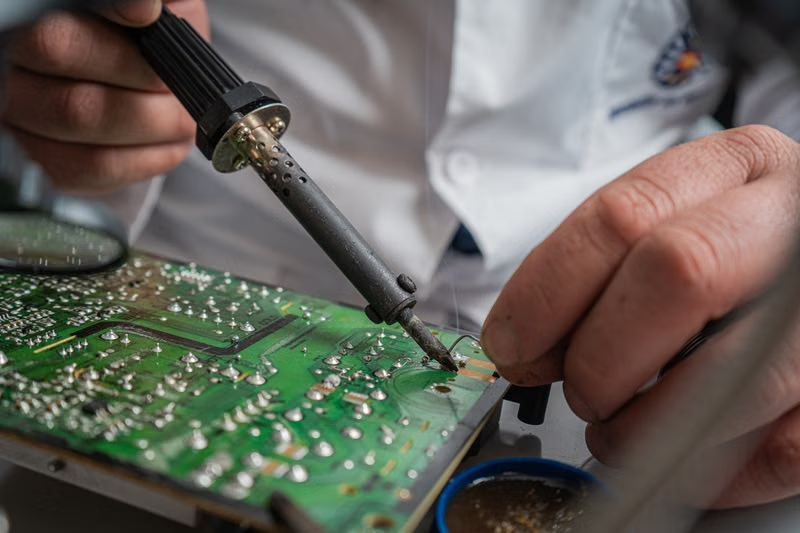
Beyond simple software hiccups, Error 9 can point to more serious underlying hardware issues. The baseband is the dedicated processor responsible for cellular communications on your iPhone. During a restore, the device performs a signature check against the Apple servers to verify the integrity of the hardware. If the baseband chip has developed a physical fault, such as a micro-crack in the solder balls beneath the chip or a failure in the logic board power management circuit, the restore will fail as soon as the installation process reaches the baseband firmware stage.
This hardware scenario is distinct from a software conflict because it usually happens at the exact same percentage point during the progress bar. If the restore consistently fails at 20 percent or 70 percent, it often correlates with the specific phase where the computer attempts to communicate with the device's modem. While less common than software-related causes, hardware-based Error 9 issues are significant and often require professional diagnostic services to determine if the logic board is salvageable.
Step-by-Step Troubleshooting for USB Connectivity
Testing Cables and Port Integrity
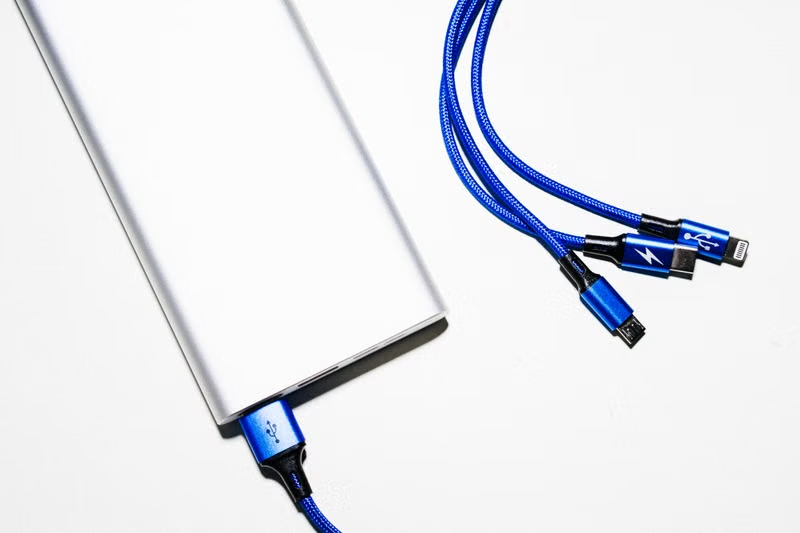
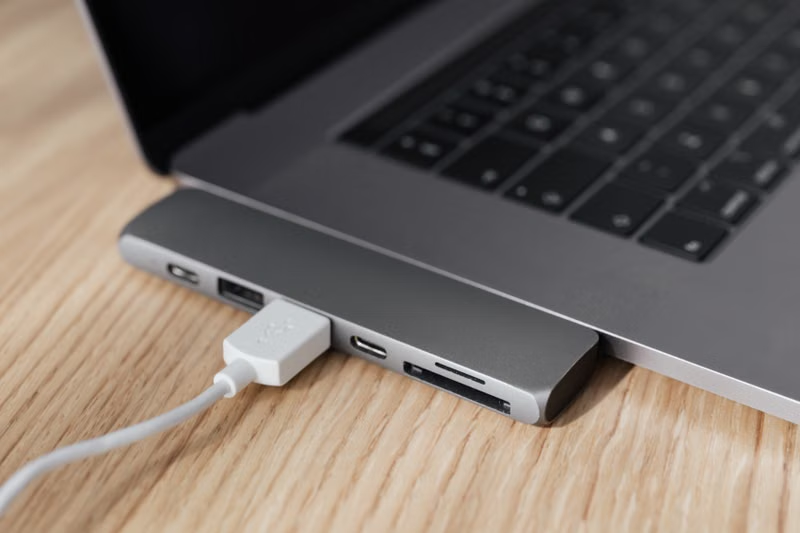
The first line of defense is ensuring the physical infrastructure is flawless. Many users attempt to fix the error by restarting their computer, but the physical connection remains the bottleneck. You should always use an original Apple-certified Lightning or USB-C cable. Third-party cables may provide enough power to charge the device but often lack the shielding and data transmission quality required for the high-bandwidth requirements of an iOS restore.
Furthermore, the USB port itself can be a point of failure. If you are using a desktop computer, connect the cable directly to the rear ports on the motherboard rather than the front-panel ports, which often use internal headers that can suffer from signal degradation. If you are using a laptop, ensure that no other high-power USB devices, such as external hard drives or scanners, are connected simultaneously, as they may cause voltage fluctuations that interrupt the data sync.
Managing Drivers and System Settings
On Windows computers, the Apple Mobile Device USB Driver is essential. If this driver is corrupted or out of date, the computer will not communicate with the iPhone in recovery mode correctly. You can reset this by opening the Device Manager, locating the Universal Serial Bus controllers, and uninstalling the Apple Mobile Device USB Driver. Once uninstalled, disconnect your device, restart the computer, and reconnect the iPhone to force Windows to reinstall the latest version of the driver.
On macOS, the process is streamlined but still prone to interference from stale cache files. Ensure that your macOS is updated to the latest available version via System Settings. If the issue persists, you may need to check your system's security settings. Sometimes, the firewall or third-party antivirus software acts as a gatekeeper, preventing the Finder from communicating with Apple's servers to verify the firmware. Temporarily disabling these services during the restore process can confirm if they are the source of the blockage.
Advanced Recovery Techniques
Using DFU Mode for Deep Restoration
If standard Recovery Mode fails, Device Firmware Update (DFU) mode is the next level of intervention. Unlike Recovery Mode, which uses the iBoot bootloader, DFU mode allows the device to interface with iTunes or Finder without loading the operating system or the bootloader. This is the most "low-level" restore possible and bypasses many of the conditional checks that cause Error 9 to trigger early in the process.
To enter DFU mode, the button sequence varies by model. Generally, this involves connecting the device to the computer, quickly pressing and releasing volume up, then volume down, and holding the side button until the screen goes black. Once the screen is black, you must hold both the side button and the volume down button for exactly five seconds before releasing the side button while continuing to hold the volume button. If done correctly, the screen will remain black, and your computer will notify you that it has detected an iPhone in recovery mode.
Managing Security Software Conflicts
Security suites are designed to be intrusive, and they often scrutinize the encrypted traffic between your iPhone and Apple servers. If you are running software such as Norton, McAfee, or even specialized VPN clients, these applications can intercept the data packets during the restore. This interruption is almost always interpreted by the iPhone as a loss of connection, resulting in Error 9.
To mitigate this, you should perform a clean boot of your computer before starting the restore. On Windows, this means disabling all non-Microsoft startup services. On Mac, booting into Safe Mode can achieve a similar effect by preventing third-party drivers and background agents from loading. By stripping the system down to its essential functions, you create the most stable environment for the restore to complete without external software interference.
Comparison of Restore Methods
| Method | Best Used For | Success Probability |
|---|---|---|
| Recovery Mode (Standard) | Minor software glitches, boot loops. | Moderate |
| DFU Mode | Persistent errors, firmware corruption. | High |
| Third-Party Repair Tools | Non-critical system hangs. | Variable |
Conclusion
Resolving iTunes or Finder Error 9 requires a methodical approach that prioritizes physical connectivity, driver integrity, and the removal of software-level interference. By moving from simple cable swaps to more advanced DFU mode restorations, you can isolate the specific variable preventing your iPhone from communicating with the restore server. While some instances of this error may point to permanent baseband or logic board damage, the majority of cases are solvable through the systematic troubleshooting steps outlined in this guide, restoring your device to full functionality.
Frequently Asked Questions
Does Error 9 always mean my iPhone is broken?
No. While Error 9 can indicate hardware failure, it is frequently caused by temporary software conflicts, faulty cables, or outdated drivers. Always rule out external factors before assuming the logic board is damaged.
Can I fix Error 9 without losing my data?
If you are in a state where an error occurs during a restore, your data is likely already inaccessible. If you have an iCloud or computer backup, you can restore your data after the device is successfully repaired.
Why does my restore fail at the same percentage every time?
Consistent failure at a specific percentage usually indicates a hardware-level check. For example, if it fails at 20 percent, the device is likely failing a hardware signature check or baseband communication test.
Should I use third-party software to fix this error?
Proceed with caution. While some third-party tools can assist with booting the device, many are ineffective against hardware-based Error 9. Always try the official Apple methods first.
References
- Apple Support: If you see an error when you update or restore your iPhone.
- Apple Developer Documentation: Recovery mode and DFU mode procedures.
- Official iOS Firmware Integrity Guidelines.