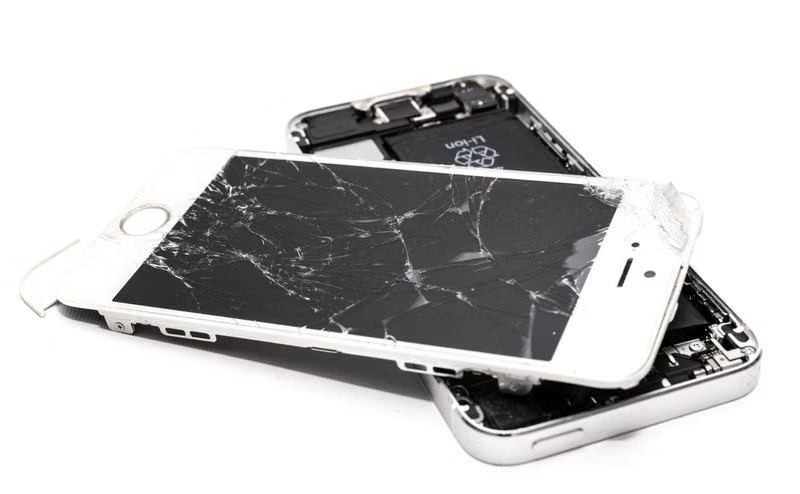
The dreaded Error 14 on an iPhone often appears during an iOS update or restoration process, leaving users staring at a frozen device or a persistent loop. This error code is fundamentally tied to the communication between your device and the computer, often triggered when the internal storage is critically low or the firmware file becomes corrupted during the download or installation phase. When the system lacks the necessary headroom to unpack update files, the process halts, triggering a safety mechanism that prevents further damage to the file system.
Understanding this error requires a look at the device's architecture. iOS updates require a significant buffer of free space to verify files and reorganize existing data. If your iPhone is nearly full, the system may fail to initiate the update, leading to a boot loop where the device attempts to restart, hits the wall of insufficient storage, and crashes again. This guide provides a systematic approach to breaking this cycle and restoring your device to a functional state without necessarily losing all your personal data.
Understanding the Causes of iPhone Error 14
The Link Between Storage Capacity and Update Failures
At the heart of many Error 14 instances is the threshold of available storage. iOS requires a specific amount of temporary space to perform background tasks during an update. When users operate their devices at near-maximum capacity, there is no room for the operating system to move system files or create temporary caches. This creates a bottleneck that results in a failed handshake between the computer and the iPhone, manifesting as the Error 14 code.
Furthermore, if the device attempts to perform an Over-the-Air (OTA) update while storage is nearly full, it can corrupt the system partition. Once this partition is compromised, the device can no longer boot into the standard iOS environment. The phone is then forced into a recovery state, where it looks for a fresh firmware image from an external source, such as iTunes or Finder, to overwrite the corrupted sectors.
Firmware Corruption During the Restoration Process
Beyond storage limitations, the integrity of the firmware file itself plays a critical role. If you are using a compromised USB cable, a faulty USB port, or if the connection is interrupted during the download of the IPSW file, the firmware being pushed to the device will be incomplete or damaged. When the iPhone attempts to verify this package, the process fails to ensure security and stability.
This corruption is often silent until the final stage of the installation. The computer may successfully begin the process, but as the device attempts to write the new system image, the verification check fails. This is a deliberate design choice by Apple to prevent the installation of non-verified or broken software, which would otherwise render the device completely bricked rather than just stuck in a recovery loop.
Initial Troubleshooting Steps
Checking Hardware Connections and Cables
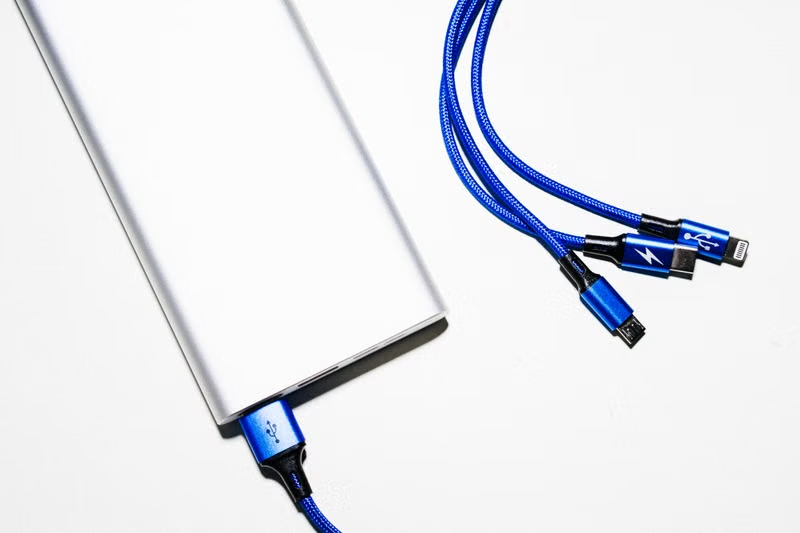
Before assuming a catastrophic system failure, verify the physical path of data transfer. Error 14 is frequently a result of a physical connection drop. Ensure you are using an Apple-certified MFi Lightning or USB-C cable. Third-party cables often lack the shielding or data transfer stability required for high-speed firmware flashing, leading to packet loss during the restoration process.
Switching USB ports on your computer can also yield different results. If you are using a desktop computer, connect the cable directly to the motherboard ports on the back of the case rather than the front panel ports, which often have lower power output and unstable data throughput. If you are using a USB hub, remove it entirely from the equation to ensure a direct, uninterrupted link between the iPhone and the computer.
Updating iTunes or macOS Finder
The software facilitating the restore must be current. If your version of iTunes on Windows or the Finder app on macOS is outdated, it may not be able to communicate effectively with the latest iOS firmware versions. An outdated software environment can misinterpret the error flags sent by the iPhone, leading to a generic Error 14 message even when the underlying issue might be a simple driver incompatibility.
To ensure success, navigate to the official Apple website or use the integrated update features in your operating system to download the latest version of the management software. Once updated, restart both your computer and the iPhone. This clears the temporary cache of the management application and allows for a fresh, clean initiation of the recovery protocol.
Advanced Recovery Techniques
Entering Recovery Mode Correctly
To bypass the crash loop, you must force the device into Recovery Mode. The steps vary by device model, but the objective remains the same: to stop the device from attempting to load the corrupted OS and instead force it to wait for instructions from a host computer. For newer iPhones, this involves a specific sequence of button presses: press and release volume up, press and release volume down, and then hold the side button until the recovery screen appears.
Once the device is in this state, the computer will prompt you with two options: Update or Restore. The Update option attempts to reinstall iOS without erasing your personal data. This is the preferred first choice. However, if the firmware corruption is severe, the Update path may fail, leaving you with no choice but to proceed with the Restore option, which will wipe the device to ensure a clean slate.
Utilizing DFU Mode for Deep Restoration
If standard Recovery Mode fails, Device Firmware Update (DFU) mode is the final resort. DFU mode is a low-level state that allows the device to interface with iTunes without loading the bootloader or the operating system. This is the most effective way to bypass software-level barriers that prevent a standard restore.
Entering DFU mode requires precise timing. You must connect the device to the computer, perform the button sequence, and release the buttons at the exact moment the screen goes black. If done correctly, the device screen will remain black, but your computer will detect an iPhone in recovery mode. This state is often the only way to resolve persistent Error 14 issues caused by deep-level firmware corruption.
Managing Storage and Preventing Future Loops
The Importance of Regular Data Offloading
Prevention is the best strategy against Error 14. Users who keep their storage utilization below 90 percent are significantly less likely to encounter these issues during major system updates. Regularly offloading large media files—such as 4K videos or high-resolution photos—to iCloud or an external drive is essential for maintaining the overhead required for system maintenance.
Consider enabling the Optimize iPhone Storage feature in your iCloud settings. This allows the device to automatically manage local storage by replacing full-resolution files with smaller, space-efficient versions. By keeping your local storage footprint small, you ensure that the operating system always has the breathing room necessary to execute updates, backups, and routine file indexing without crashing.
Analyzing Battery and Hardware Health
While often overlooked, an aging battery can contribute to system instability. When a battery is degraded, it may struggle to provide the peak power required during the intensive process of an iOS update. If the voltage drops during the flashing process, the device might suffer a sudden shutdown, which can corrupt the firmware being installed.
If you have experienced multiple Error 14 issues despite using fresh cables and updated software, it is worth checking the battery health in your system settings. If the maximum capacity is below 80 percent, a battery replacement may be necessary to ensure the device can handle the energy-intensive tasks of modern iOS functionality without entering a failure state.
Comparison Table: Recovery Methods
| Method | Data Loss Risk | Effectiveness | Best Used For |
|---|---|---|---|
| Simple Restart | None | Low | Minor, temporary glitches |
| Recovery Mode (Update) | Minimal | Medium | Standard firmware repair |
| Recovery Mode (Restore) | High | High | Corrupted file systems |
| DFU Mode | High | Maximum | Deep-level firmware failures |
Conclusion
Resolving iPhone Error 14 requires a methodical approach that prioritizes stable connectivity, updated management software, and, when necessary, the aggressive restoration of the system partition. While the experience of a crash loop is undoubtedly frustrating, most devices can be recovered by moving through the hierarchy of troubleshooting steps, from standard updates to the deep-level DFU restore. By maintaining adequate free storage and using certified hardware for connections, you can significantly mitigate the risk of encountering this error in the future, ensuring your device remains both functional and reliable.
Frequently Asked Questions
Will I lose all my data if I restore my iPhone?
Using the Update feature in iTunes or Finder typically preserves your data. However, if the error is caused by severe corruption, a full Restore may be the only way to fix the device, which will erase all content. This is why regular backups to iCloud or a computer are critical.
Can a bad cable cause Error 14?
Yes, absolutely. A faulty or non-certified Lightning/USB-C cable is one of the most common causes of Error 14. Because the update process relies on a constant, high-speed data stream, even a micro-interruption in the connection can trigger an error and corrupt the installation.
What should I do if DFU mode doesn't work?
If DFU mode fails to resolve the issue, the problem may be related to the motherboard or physical NAND flash memory rather than the software. In this case, you should contact Apple Support or visit an authorized service center for a hardware diagnostic.
Why does my iPhone keep going back to the recovery screen?
If the device keeps booting back into the recovery screen after a restore, it usually indicates that the firmware installation was incomplete or that there is an underlying hardware failure. Try using a different computer with a fresh copy of the IPSW file to rule out software issues on the host machine.
References
- Apple Support: If you see an error when you update or restore your iPhone.
- Apple Developer Documentation: Understanding iOS Firmware and Restore Processes.
- Official iOS User Guide: Managing Storage and System Updates.