Encountering an error code during an iPhone restore process can be a stressful experience, especially when your device seems unresponsive or stuck in a recovery loop. Error 4013, often referred to as the iPhone communication error, typically occurs when the connection between your Apple device and the computer is interrupted during the update or restore sequence. This specific error message indicates that the handshake between the iOS device and iTunes or Finder was broken, preventing the firmware from installing correctly.
While this issue is frequently linked to hardware connectivity problems, such as faulty cables or USB ports, it can also stem from software glitches, outdated drivers, or corrupted system files. Understanding the root cause is the first step toward resolution. In this guide, we will walk you through systematic troubleshooting techniques, ranging from simple hardware swaps to advanced recovery modes, ensuring you have the best chance to restore your iPhone to its functional state without losing your data unnecessarily.
Understanding the Causes of iPhone Error 4013
Hardware Connectivity Issues
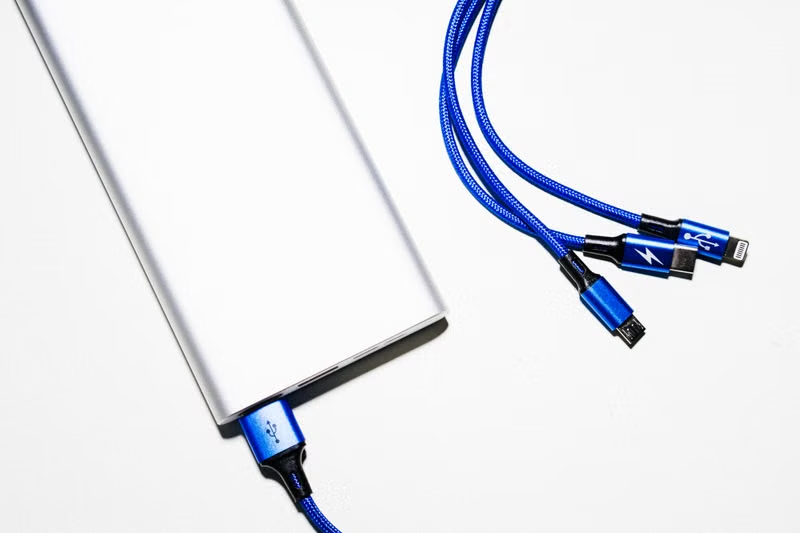
The most common culprit behind this error is a physical connection breakdown. Because the restoration process requires a consistent and stable data stream between the iPhone and the computer, even a momentary drop in signal can trigger a failure. This is often caused by a damaged Lightning or USB-C cable that may seem functional for charging but fails to maintain the high-speed data transfer required for a firmware flash.
Additionally, the USB port on your computer may be at fault. Dust accumulation inside the port or insufficient power output can lead to communication timeouts. We recommend testing a different port, preferably one directly on the motherboard if you are using a desktop computer, rather than relying on USB hubs or front-panel ports, which often provide lower data stability.
Software and Driver Conflicts
Beyond physical connections, software environments on your computer play a critical role. If you are running an outdated version of iTunes on Windows or using an incompatible macOS version, the software may struggle to communicate with the latest iOS firmware files. Corrupted driver installations, specifically the Apple Mobile Device Support service, can also prevent your computer from recognizing the iPhone correctly during the critical restoration phase.
Furthermore, third-party security software or firewalls can sometimes flag the restoration process as a security threat, blocking the connection to Apple's servers. Disabling antivirus software temporarily during the restore process is a standard diagnostic step to rule out interference from security suites that might be obstructing the verification process required for iOS installation.
Preliminary Troubleshooting Steps
Checking Cables and Hardware
Before attempting complex software modifications, perform a hardware audit. Disconnect all other USB peripherals from your computer to ensure the iPhone has the full attention of the USB controller. Use an Apple-certified MFi cable if possible; third-party, low-quality charging cables often lack the necessary shielding to prevent data interference during large file transfers.
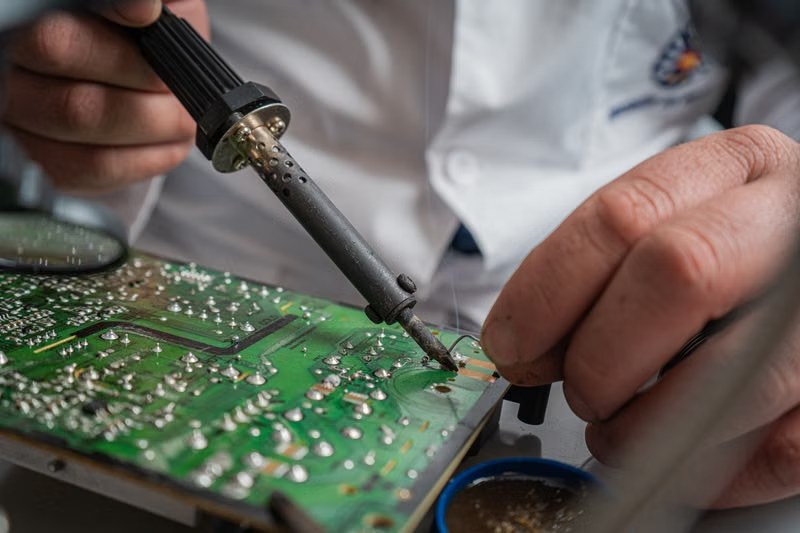
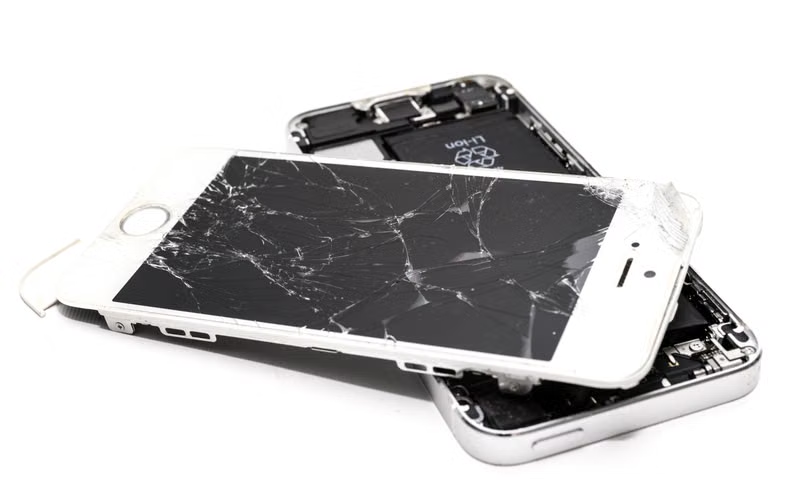
If you have access to a different computer, attempt the restore there. This helps isolate whether the issue lies within your specific computer environment or the iPhone hardware itself. If the device remains undetected or continues to throw Error 4013 on a secondary machine, the issue is significantly more likely to be internal to the iPhone, such as a failing NAND flash chip or a damaged logic board component.
Updating iTunes and macOS
Apple frequently releases updates to improve device compatibility and security. An outdated version of iTunes on Windows or an older macOS version might lack the necessary protocols to communicate with newer iOS versions. Always ensure you are running the latest version available from the Microsoft Store or the official Apple website.
On macOS, the restore process is handled directly through Finder. Ensure your operating system is fully updated to the latest minor version, as Apple often bundles critical fixes for mobile device communication within these system updates. Restarting your computer after these updates is mandatory to ensure all background services and drivers are correctly reinitialized.
Advanced Recovery Techniques
Forcing a Restart While Connected
Sometimes, the device is simply stuck in a transient state. A force restart can clear the memory and potentially resolve a temporary software hang. For iPhone 8 and later models, quickly press and release the volume up button, then the volume down button, and finally hold the side power button until the recovery screen appears.
Keep the device connected to the computer during this process. Once the Apple logo appears, do not release the button immediately; wait until the connect-to-computer icon appears on the display. This ensures that the device enters the correct state to accept a fresh firmware image from the restoration software.
Using Recovery Mode for Firmware Restores
If a standard update fails, Recovery Mode is your next line of defense. This mode bypasses the standard iOS boot sequence and forces the device to wait for a direct command from the computer. When prompted by iTunes or Finder, choose the Restore option rather than Update. Note that selecting Restore will erase all data on the device, which is why having an iCloud or local backup is essential.
During the restore, the software will download the latest IPSW file from Apple's servers. If you have a slow internet connection, the process might time out, leading back to Error 4013. Ensure your internet connection is stable and consider downloading the IPSW file manually from a reliable source if the automatic download continues to fail.
Comparative Analysis: Update vs. Restore
| Process | Data Retention | When to Use |
|---|---|---|
| Update | Preserves Data | When the device is stuck in a boot loop but hardware is functional. |
| Restore | Erases Everything | When Update fails or the operating system is heavily corrupted. |
Managing Third-Party Interference
Disabling Security Software
Many users overlook the impact of third-party firewalls. These programs may interpret the sudden, high-volume data transfer between your iPhone and Apple servers as a malicious attack. Temporarily disabling your firewall and real-time antivirus protection can clear the path for the restoration process to complete successfully.
Remember to re-enable your security software immediately after the restoration is complete. If you suspect a specific application is causing the issue, add iTunes or the Apple device service to your security software's whitelist to prevent future interruptions during routine backups or updates.
Managing USB Hubs and Ports
Not all USB ports are created equal. High-powered ports on the back of a computer tower provide more stable voltage than those on the front panel or a laptop's peripheral hub. We strongly advise against using external USB hubs during the restoration process, as these devices often struggle to maintain the sustained data throughput required for an iOS restore.
If you are using a laptop, ensure it is plugged into a power source. Battery-saving modes can sometimes throttle USB power output, which is insufficient for the intensive data writing required during a firmware restore. Keeping your laptop plugged in and set to high-performance mode can prevent power-related errors that manifest as code 4013.
Conclusion
Fixing iPhone Error 4013 is a systematic process of elimination that starts with simple hardware checks and progresses to deeper software recovery methods. By ensuring you have a stable data connection, using original cables, and leveraging Recovery Mode, you can resolve most communication failures. If these steps do not yield a result, the issue likely resides within the device's internal hardware, necessitating a visit to an authorized Apple service center for professional inspection.
Frequently Asked Questions
Will I lose my photos if I use the Restore option?
Yes, selecting the Restore option will wipe all data on your iPhone. However, if you have iCloud Backup enabled, you can restore your photos and data from your most recent cloud backup after the device is successfully set up again.
Can I fix Error 4013 without a computer?
Unfortunately, no. Error 4013 is a communication error between the iPhone and an external computer. You must connect the device to iTunes or Finder to facilitate the firmware reinstallation required to clear this specific error.
How long does the restore process take?
The duration depends on your internet speed for downloading the firmware and the speed of your computer's storage. On average, the process takes between 20 to 45 minutes from start to finish.
What if the error persists after trying multiple cables?
If you have tried multiple original Apple cables, different computers, and all software troubleshooting steps without success, the issue is likely a hardware failure on the iPhone logic board, such as a corrupted NAND chip. Professional hardware repair is required in this scenario.
References
- Apple Support: If you see an error when you update or restore your iPhone.
- Apple Support: If your computer doesn't recognize your iPhone, iPad, or iPod.
- Official iOS Firmware Guidelines and Recovery Procedures.