
Encountering an interruption during the installation of a high-capacity application or game can be incredibly frustrating. Google Play Error Code 924 is a specific notification that generally appears when the system fails to complete the download or update process for larger files. Unlike minor connectivity glitches, this error often points toward a synchronization issue between the Google Play Store servers and the local cache stored on your device.
Understanding why this happens is the first step toward a permanent resolution. In most cases, the error occurs because the temporary files associated with the Google Play Store have become corrupted or the local storage buffer is unable to handle the incoming data packet size. By methodically addressing these software-level conflicts, you can bypass the error and ensure your device returns to its optimal state, allowing you to enjoy the latest versions of your favorite software.
Understanding the Causes of Error 924
Why Large Apps Trigger Update Failures
Large applications require substantial temporary storage space and a consistent data stream to unpack and install correctly. When the Play Store attempts to download a file exceeding several hundred megabytes, it creates a staging area in the device memory. If the cache is cluttered with legacy data from previous installations, the system may struggle to allocate the necessary resources, resulting in the 924 error code. This is essentially a resource management failure where the operating system loses track of the download progress.
Furthermore, network instability plays a significant role. If your connection drops for even a fraction of a second during the download of a large file, the checksum verification process may fail. The Play Store is programmed to protect the integrity of the installation, so if it detects a mismatch between the expected file size and the received data, it terminates the process to prevent installing a corrupted application. This safety mechanism is what triggers the error message you see on your screen.
Software Conflicts and System Cache
The Android operating system relies heavily on cached data to speed up app loading times and background processes. Over time, these cache files can accumulate errors, leading to conflicts that manifest as installation failures. When you update a large game, the Play Store must communicate with Google Services Framework. If the communication protocol is interrupted by a corrupted cache file, the authentication or installation handshake fails, leading directly to the 924 error code.
It is also possible that a recent system update has created a version mismatch between the Google Play Store app and the underlying Android OS. These software conflicts are relatively common after major firmware upgrades. Clearing the application data acts as a reset, forcing the Play Store to re-establish a clean connection with Google servers and rebuild its internal database, which often resolves the underlying incompatibility issue without requiring a factory reset.
Primary Troubleshooting Steps for Error 924
Clearing Google Play Store Cache and Data
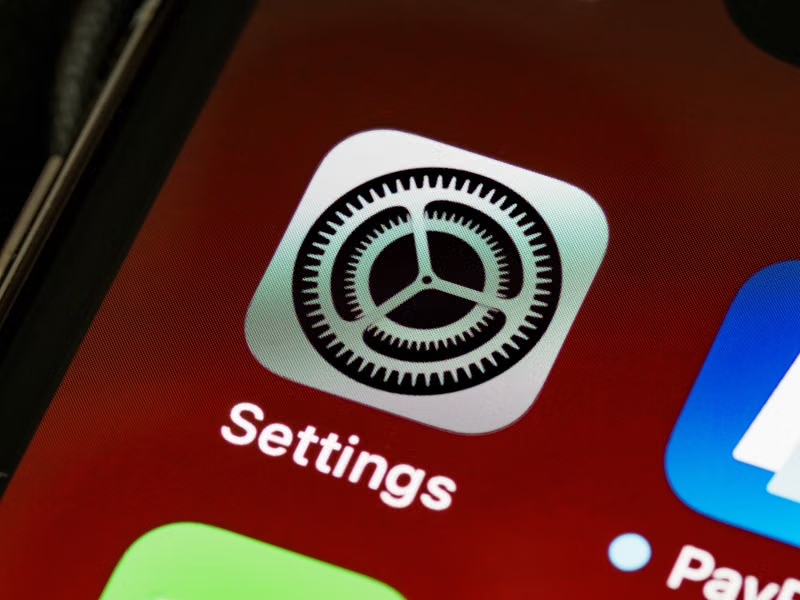
The most effective way to resolve this error is by resetting the Play Store application to its default state. Navigate to your device settings and open the Applications or Apps manager section. From the list of installed apps, locate Google Play Store. Once selected, tap on Storage. You will see two distinct buttons: Clear Cache and Clear Data. Start by clearing the cache, then proceed to clear the data. Note that clearing data will reset your Play Store preferences, but it will not delete your apps or personal files.
After performing these actions, it is essential to perform the same steps for Google Play Services. Many users overlook this step, yet it is crucial because Google Play Services acts as the backbone for all Google-related applications. By clearing the data for both the Store and the Services, you ensure that any corrupted background processes are terminated and that the system is forced to perform a clean sync, which frequently clears the 924 error.
Uninstalling Play Store Updates
Sometimes, the current version of the Play Store app itself is the source of the problem. If you have recently updated the application and started seeing the 924 error, you should attempt to revert it to its factory version. Within the same Apps menu where you cleared the cache, look for an option labeled Uninstall Updates. This will remove the recent patches applied to the Play Store, reverting it to the version that came pre-installed on your device.
Once you have uninstalled the updates, restart your phone. Upon restarting, the Play Store will automatically attempt to update itself to the latest stable version in the background. This process often fixes the internal glitches that were causing the 924 error. If the download works after this step, you have successfully confirmed that the previous version of the app was indeed the culprit behind the installation failure.
Advanced Network and Account Solutions
Removing and Re-adding Your Google Account
If clearing the cache does not work, the issue might lie in the authentication token associated with your Google account. To fix this, go to Settings, then Accounts, and select your Google account. Choose the option to Remove Account. Once removed, restart your device to clear any remaining temporary session data. After the reboot, go back to the Accounts menu and log in again with your Google credentials.
This process forces the device to generate a fresh authentication token. Since the 924 error can occasionally be caused by a timeout in the account verification process, re-adding the account effectively creates a new, verified handshake between your phone and Google servers. This is often the most reliable method for stubborn errors that persist even after clearing local application data.
Switching Network Environments
Connectivity issues are a frequent, yet often overlooked, cause of Error 924. If you are using a public Wi-Fi network or a cellular data connection with fluctuating signal strength, the large file download is prone to failure. Attempt to switch from Wi-Fi to a stable cellular connection, or preferably, use a different, more reliable Wi-Fi network. Some public networks have firewalls that block the specific ports used by Google Play for large file transfers.
Additionally, check if you have any VPN or proxy services enabled. These services can sometimes mask your IP address in a way that Google servers interpret as suspicious, leading to connection timeouts. Disable any VPN applications before attempting to update your apps. A direct, unencrypted connection is often the most successful way to download large game files without triggering integrity verification errors.
Comparison of Troubleshooting Methods
| Method | Difficulty | Success Rate | Data Loss Risk |
|---|---|---|---|
| Clear Cache/Data | Low | High | None |
| Uninstall Updates | Low | Medium | None |
| Remove Google Account | Medium | High | None |
| Factory Reset | High | Very High | High |
Conclusion
Fixing Google Play Error Code 924 is generally a straightforward process that involves clearing corrupted cache data, refreshing your account credentials, or ensuring a stable network environment. By following the systematic steps outlined in this guide, you can eliminate the software conflicts that prevent large app updates and restore the full functionality of your Android device. If these methods fail, a final check for system software updates is recommended before considering more drastic measures like a factory reset.
Frequently Asked Questions
Does Error 924 mean my phone is broken?
No, Error 924 is a software-related synchronization issue and does not indicate any permanent hardware damage to your device. It is a common occurrence on Android and can be resolved through simple software management.
Will I lose my apps if I clear Google Play Store data?
Clearing the Play Store data will not uninstall your apps or delete your personal files. It only resets the temporary settings and search history within the Play Store app itself.
Can low storage space cause Error 924?
Yes, if your device is nearly full, the system may struggle to unpack large files. Ensure you have at least 1-2 GB of free space before attempting to download or update large games.
Why does this error only happen with large apps?
Large apps require more extensive staging and data verification. Minor network or cache inconsistencies are magnified during these large transfers, making them more susceptible to triggering error codes compared to smaller, lighter applications.
References
- Google Play Help: Troubleshoot download and installation issues.
- Android Developers Documentation: Managing application data and cache.
- Official Google Support Community: Error code troubleshooting guides.