The Google Play Store remains the backbone of the Android ecosystem, serving as the primary gateway for millions of applications, updates, and digital content. However, users occasionally encounter disruptive hurdles that prevent seamless interaction with the platform. Among these, Error 495 is a persistent and frustrating notification that appears when an app fails to download or update. This error typically signifies a breakdown in communication between your device and Google's servers, often triggered by corrupted temporary data or network-level obstructions.
Understanding the root cause of this error is essential for a permanent resolution. While it may seem like a complex server-side failure, it is frequently a localized issue related to how your device interprets cached data or authenticates your connection via proxy services. By methodically addressing the underlying configuration files and network settings, most users can restore full functionality to their Play Store without requiring advanced technical knowledge or factory resets.
Understanding the Causes of Error 495
What Triggers Error 495 on Android Devices?
This specific error code is categorized as a connectivity or synchronization failure. When you initiate a download request, your device sends a packet to the Google Play servers to authenticate the session. If the return signal is interrupted or if the device holds onto outdated cached data from a previous session, the request is rejected. This often happens after a system update or when switching between different internet service providers, which might cause a mismatch in the handshake protocol.
Another frequent culprit is the accumulation of fragmented data within the Google Play Services framework. Because Google Play Services acts as the intermediary between your apps and the core operating system, any corruption here cascades into the Play Store interface. Users who frequently install and uninstall large applications are more prone to this, as the system struggles to reconcile the changing file permissions and storage pathways.
The Role of Network Configurations and Proxies
Network-level interference is a significant contributor to installation failures. If you are operating under a restrictive network environment, such as a corporate firewall or a misconfigured VPN, the packets required to complete the app verification process may be dropped. The Google Play Store requires a stable, direct connection to verify your account credentials and app license status; anything that masks your IP address or creates a tunnel can trigger a security flag, resulting in the 495 error code.
Furthermore, DNS settings play an overlooked role in this process. If your ISP-provided DNS is slow or improperly routing requests to the nearest Google content delivery node, the connection will time out. This timeout is interpreted by the Android framework as a generic error, which the system then labels as Error 495, leading many users to incorrectly assume that the Play Store servers are down.
Clearing Cache and Data for Play Store Services
How to Clear Google Play Store Cache and Data
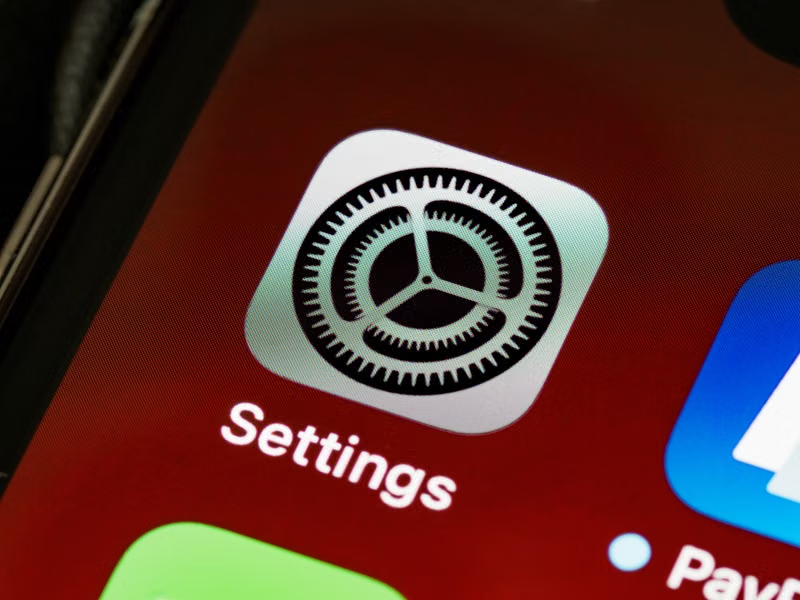
The first line of defense in resolving this error involves purging the temporary files that may be causing the conflict. The Play Store stores small snippets of information to speed up browsing, but these snippets can become corrupt over time. To fix this, navigate to your device Settings, select Apps or Application Manager, and locate Google Play Store in the list. From there, tap on Storage and select Clear Cache. If the error persists, select Clear Data, which will reset the application to its default state without removing your installed apps.
Following this, you must perform the same action for Google Play Services. This is a critical step because the Play Store depends entirely on the framework provided by Google Play Services. Clearing the cache for this background process forces the system to re-establish a fresh, error-free link with Google servers. Once these steps are completed, it is highly recommended to perform a full system restart to ensure that all background processes refresh their connections.
Resetting Google Services Framework
The Google Services Framework is the heartbeat of your device's interaction with Google accounts. When the standard cache clearing fails, resetting the framework can force the system to re-register your device. Navigate to Settings, Apps, and find Google Services Framework. Tap Force Stop, then clear the cache and data. Be aware that this action may require you to re-sign into your Google account, but it is often the most effective way to clear deep-seated synchronization errors.
Resolving VPN and Network Connectivity Issues
Disabling VPNs and Proxy Servers
If you are utilizing a Virtual Private Network (VPN), your connection is being routed through an external server, which can cause latency or server-side refusal. Many VPN providers utilize shared IP addresses that Google may temporarily blacklist if too many requests originate from a single node. To troubleshoot this, completely disable your VPN application and any proxy settings in your Wi-Fi configuration. Attempt to download an app on a standard, open network to verify if the VPN was indeed the interference point.
In some cases, the VPN application itself may retain residual settings even after being turned off. It is advisable to temporarily uninstall the VPN app to see if the Play Store functionality returns. If the Play Store works after the uninstallation, the issue lies within the VPN's protocol or the specific server you were connected to. You may need to update your VPN client or switch to a different protocol, such as WireGuard or IKEv2, which are generally more stable for mobile data traffic.
Switching Between Wi-Fi and Mobile Data
Network switching is an effective diagnostic tool. If you are connected to a Wi-Fi network, the error might be related to your router's security settings or bandwidth throttling. Toggle your Wi-Fi off and switch to mobile data to see if the download proceeds. Conversely, if you are on mobile data, try connecting to a reliable, private Wi-Fi network. This simple switch can reveal whether the issue is tied to your specific ISP's handling of Google’s traffic or a localized hardware issue with your router.
Advanced Troubleshooting Steps
Removing and Re-adding Your Google Account
If the error remains persistent, the authentication token associated with your Google account on the device may have expired or become corrupted. By removing the account, you strip away the old authentication tokens. Go to Settings, Accounts, select your Google account, and choose Remove Account. Once removed, restart your device and navigate back to Settings to add the account again. This process forces a complete re-sync of your app data and Google Play preferences, often clearing the 495 error permanently.
Checking for System Updates
An outdated Android OS can lead to compatibility issues with the latest version of the Google Play Store. Ensure your device is running the latest software provided by your manufacturer. Go to Settings, System, and check for Software Updates. Manufacturers frequently release patches that address background communication protocols, and these updates often contain fixes specifically designed to resolve common connectivity errors in core Google applications.
Comparative Analysis of Fixes
| Method | Effectiveness | Risk Level |
|---|---|---|
| Clear Play Store Cache | High | Low |
| Remove Google Account | High | Medium |
| Disable VPN/Proxy | Medium | Low |
| Factory Reset | Very High | Extreme |
Conclusion
Fixing Error 495 in the Google Play Store is a straightforward process that involves isolating the source of the connectivity disruption, whether it stems from temporary file corruption, account synchronization issues, or external network interference. By methodically clearing the cache of Play Store services, resetting your Google account, and ensuring that VPN or proxy services are not obstructing your data flow, you can resolve the issue effectively. If these steps do not yield results, verifying your network stability and checking for system-wide updates remain the most reliable methods to ensure your device maintains a seamless connection to the Google ecosystem.
Frequently Asked Questions
Does Error 495 mean the Google Play Store is down?
Not necessarily. While it can occur during a server outage, it is usually a client-side error caused by corrupted cache or network settings on your specific device.
Will removing my Google account delete my apps?
No, removing your Google account from your device settings will not delete your installed apps, but it will sign you out of Google-related services until you add the account back.
Can a VPN cause Error 495?
Yes, VPNs can interfere with the authentication process between your device and Google servers. Disabling your VPN is often the first step in troubleshooting connectivity errors.
Is a factory reset necessary for Error 495?
A factory reset should be your absolute last resort. Most instances of Error 495 can be resolved using the cache-clearing and account-re-syncing methods described in this guide.
References
1. Google Play Help: Fix problems downloading apps. https://support.google.com/googleplay/answer/7513003
2. Android Developer Documentation: Managing App Data and Cache. https://developer.android.com/guide/topics/data/data-storage