The transition to Windows 11 introduced stricter security protocols for players of competitive titles, most notably Riot Games' Valorant. At the heart of this friction is Vanguard, the anti-cheat software that requires specific hardware-level security features to be active. When a user encounters error code VAN9003, it signifies that the system is failing to meet the mandatory requirements of Secure Boot and Trusted Platform Module (TPM) 2.0, which are natively expected by the operating system and the anti-cheat engine.
This error is not a sign of a corrupted game file or a faulty installation but rather a configuration mismatch between your motherboard firmware and the software environment. Because these settings are managed within the BIOS or UEFI, many users find the resolution process intimidating. However, by systematically verifying your system status and adjusting the firmware settings, you can restore full access to the game without risking the stability of your operating system.
Understanding that these security features are designed to prevent low-level kernel attacks, it is important to follow the correct sequence of operations. Bypassing these settings is not a viable long-term solution for playing Valorant, as Vanguard will continue to block the client until the hardware environment satisfies the security policy. The following sections will guide you through the diagnostic and rectification process.
Verifying System Requirements and Security Status
How to Check if Your System is in UEFI Mode
Before attempting to modify your BIOS, you must confirm the current state of your system partition style. Windows requires the GUID Partition Table (GPT) to operate in UEFI mode. If your drive is currently formatted as Master Boot Record (MBR), simply enabling UEFI in the BIOS may result in an unbootable system. To check this, open the Disk Management tool by right-clicking the Start button and selecting the option from the menu.
Once the window opens, locate your primary system disk—usually labeled as Disk 0. Right-click the disk name on the left side and select Properties. Navigate to the Volumes tab, where you will find the partition style listed. If it says GUID Partition Table (GPT), you are ready for the UEFI transition. If it displays Master Boot Record (MBR), you will need to utilize the MBR2GPT tool provided by Microsoft to convert your drive without data loss before proceeding with BIOS changes.
Understanding TPM 2.0 and Secure Boot
TPM 2.0 serves as a hardware-based security processor that stores cryptographic keys, while Secure Boot ensures that your computer boots using only software that is trusted by the manufacturer. Valorant's Vanguard requires both to be active to verify the integrity of your system kernel. You can check the status of these features by pressing the Windows key, typing tpm.msc, and hitting enter.
In the resulting window, look at the Status section. It should state that the TPM is ready for use and list the specification version as 2.0. If the module is not found or is disabled, the system will prevent Vanguard from initializing. Similarly, you can verify Secure Boot by typing msinfo32 in the Windows search bar and looking for the System Summary section. If Secure Boot State is listed as Off, your current BIOS configuration is the primary cause of the VAN9003 error.
Accessing and Configuring the BIOS/UEFI Interface
Entering the BIOS During Startup
Accessing the firmware interface requires precision timing during the boot process. As soon as you power on your PC, you must repeatedly press the designated BIOS key. This key varies by manufacturer but is typically Del, F2, F10, or F12. If you are uncertain of the specific key for your motherboard, consult the splash screen that appears for a fraction of a second when the computer first turns on.
If you find it difficult to catch the boot screen, Windows 11 offers a more reliable method. Navigate to Settings, select System, then Recovery. Under Advanced Startup, click Restart Now. Once the computer reboots into the blue menu screen, select Troubleshoot, then Advanced Options, and finally UEFI Firmware Settings. This will force your machine to boot directly into the BIOS interface, bypassing the need for manual key presses.
Locating Security and Boot Options
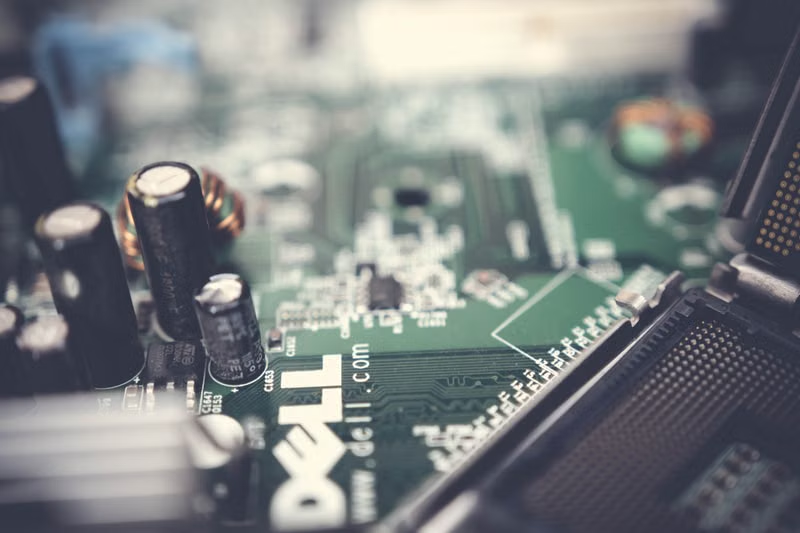
Once inside the BIOS, the layout will differ depending on whether you have an ASUS, MSI, Gigabyte, or ASRock motherboard. Regardless of the manufacturer, you are looking for two specific menus: Security and Boot. In the Security menu, look for settings labeled TPM, PTT (for Intel processors), or fTPM (for AMD processors). You must toggle these settings to Enabled.
After addressing the TPM, navigate to the Boot or Advanced tab to find Secure Boot. Ensure that the mode is set to Standard or Windows UEFI Mode rather than Custom or Legacy. If you see an option for CSM (Compatibility Support Module), it must be disabled. Enabling CSM effectively forces your system into legacy BIOS mode, which is incompatible with the requirements for Windows 11 and Valorant's Vanguard security checks.
Common Pitfalls and Troubleshooting Steps
Handling Hardware Incompatibility
Not all hardware supports TPM 2.0 natively. Some older motherboards may require a physical TPM module to be purchased and installed into the header on the board. Before assuming your hardware is obsolete, ensure your BIOS is updated to the latest version provided by the manufacturer. Frequently, manufacturers release firmware updates that enable TPM 2.0 support on older boards that previously lacked the feature.
If your CPU is too old to support modern virtualization-based security, you may be unable to satisfy the requirements for Windows 11. In such cases, the VAN9003 error acts as a hard boundary. If you have confirmed that TPM 2.0 is enabled in the BIOS but Windows still reports it as missing, check for a firmware update for the TPM module itself, which is occasionally listed as a separate update on the motherboard manufacturer support page.
Correcting Configuration Mismatches
If you have enabled all settings but the error persists, there may be a conflict between your graphics card and the boot process. Some older GPUs do not support UEFI GOP (Graphics Output Protocol). If your system fails to boot after enabling UEFI, your GPU might be the bottleneck. In this instance, you may need to use a different monitor connection method or update your GPU VBIOS.
Another common issue is the persistence of MBR settings. Even if the BIOS is set to UEFI, if the OS was installed under legacy conditions, the boot loader will not function correctly. Always ensure that the boot order is set to prioritize the Windows Boot Manager on your primary drive. If the system defaults to a legacy boot option, you will encounter security errors because the environment is not being verified through the UEFI chain of trust.
Conclusion
Resolving Valorant error code VAN9003 involves aligning your motherboard firmware with modern security standards by enabling UEFI mode, Secure Boot, and TPM 2.0. By verifying your disk partition style, accessing the BIOS/UEFI interface, and ensuring that compatibility modules are disabled, you can satisfy the stringent requirements set by Riot Vanguard. While the process requires careful navigation of your system's firmware settings, it is a necessary step for maintaining the integrity of your gaming environment on Windows 11 and ensuring that your system remains compliant with current industry security protocols.
Frequently Asked Questions
Why does Vanguard require TPM 2.0 and Secure Boot?
Vanguard uses these features to ensure that the operating system has not been compromised at a low level. TPM 2.0 provides a secure vault for cryptographic keys, while Secure Boot prevents malicious code from loading before the operating system, creating a trusted environment for the anti-cheat to operate effectively.
Can I play Valorant without enabling TPM 2.0?
No. Vanguard is designed to block the game client if it detects that the mandatory security features—specifically TPM 2.0 and Secure Boot—are disabled or inactive on a Windows 11 system.
Will enabling these settings delete my data?
Enabling TPM and Secure Boot in the BIOS does not delete your personal files. However, converting your disk from MBR to GPT to support UEFI mode requires careful handling; while tools like MBR2GPT exist, it is always recommended to back up your data before performing partition style conversions.
What if my motherboard does not have a TPM 2.0 option?
If your motherboard lacks a built-in TPM 2.0 option, check the manufacturer's website for a BIOS update. Many older motherboards received updates to enable fTPM (firmware TPM) via the CPU. If no such update exists, your hardware may be incompatible with Windows 11's strict security requirements.
What is the difference between fTPM and a physical TPM module?
An fTPM is a firmware-based implementation that utilizes your CPU's capabilities to emulate a TPM chip. A physical TPM module is a dedicated hardware chip installed on the motherboard. Both are recognized by Windows 11 and Valorant as valid solutions for meeting security requirements.
References
- Riot Games Support: Vanguard Errors and Troubleshooting.
- Microsoft Learn: Windows 11 Security Requirements and TPM 2.0.
- Microsoft Support: MBR2GPT Conversion Tool Documentation.
- Motherboard Manufacturer BIOS Manuals (ASUS, MSI, Gigabyte, ASRock).