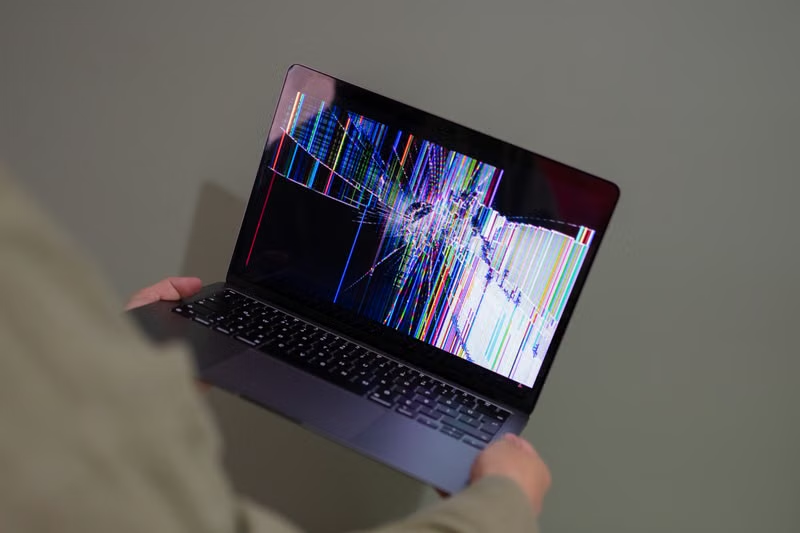

Few things are as frustrating for a competitive player as a sudden game crash during a high-stakes match. The DXGI_ERROR_DEVICE_HUNG message in Apex Legends is a notorious technical hurdle that interrupts the gaming experience, often manifesting just as the action intensifies. This error typically indicates that your graphics card has stopped responding to the commands sent by the game engine, forcing a hard reset of the rendering process.
Understanding the root cause of this issue is the first step toward a permanent solution. While the error message explicitly mentions a texture streaming budget, the problem rarely stems from a single source. It is often a complex interplay between outdated drivers, aggressive overclocking, power management settings, and the specific way the Source engine interacts with your hardware. This guide provides a systematic approach to diagnosing and resolving these crashes once and for all.
Understanding the DXGI_ERROR_DEVICE_HUNG Error
What triggers this specific GPU crash?
The error originates from the DirectX Graphics Infrastructure (DXGI) layer, which acts as a bridge between your game and the graphics hardware. When the game sends a rendering instruction that the GPU fails to execute within a specific time frame, the driver concludes that the device has hung. In the context of Apex Legends, this is frequently tied to the texture streaming budget feature, which dynamically allocates VRAM to game assets. If the allocation request exceeds the physical capacity or if the driver encounters a conflict during this memory swap, the entire graphics pipeline collapses.
Several factors can exacerbate this issue. If your GPU is overclocked, even a factory-stable overclock might become unstable under the heavy load of a battle royale environment. Furthermore, corrupted shader caches or leftover files from previous game updates can lead to incorrect memory addressing. When the game attempts to fetch a texture that does not exist or resides in an inaccessible memory block, the driver triggers the hang to prevent further system instability.
Is it a hardware or software problem?
Distinguishing between hardware degradation and software misconfiguration is critical. In most cases, this error is a software-level issue caused by driver conflicts or engine-specific settings. However, it can occasionally signal failing hardware. If your GPU is overheating or if the power supply unit is failing to provide consistent voltage to the card, the GPU may drop its clock speed or reset its state to protect itself, resulting in the same error message.
To determine the culprit, you should monitor your hardware temperatures using diagnostic software. If the crashes occur consistently after 30 minutes of gameplay, it is likely a thermal throttling issue. If the crashes happen randomly, even during the loading screen or menu, the issue is almost certainly related to software, drivers, or the configuration files within the game directory.
Adjusting In-Game Settings for Stability
Lowering texture streaming budget effectively
The game settings menu provides a direct way to manage how much VRAM is utilized. Many players assume that setting the texture streaming budget to the highest possible value is ideal for quality, but this leaves very little overhead for the engine to handle spikes in data. If your card has 8GB of VRAM, setting the budget to 6GB or 4GB often provides the necessary breathing room for the driver to manage memory swaps without timing out.
Navigate to the Video settings tab in Apex Legends. Look for the Texture Streaming Budget option. If you are currently set to Insane or High, try dropping it by one or two levels. Restart the game after making these changes to ensure the memory allocation reloads correctly. This simple adjustment often resolves the hang because it prevents the engine from pushing the GPU to its absolute memory limit during intense firefights where many assets are loaded simultaneously.
Disabling unnecessary graphical features
Certain high-impact settings can increase the workload on the GPU without providing significant competitive advantages. Volumetric lighting, dynamic spot shadows, and high-fidelity ambient occlusion are taxing on the rendering pipeline. By reducing these settings, you lower the overall stress on the graphics processor and reduce the likelihood of the driver hanging due to a complex rendering request.
Consider setting shadow-related options to Low or Medium. These settings require significant computation and can be the primary trigger for a device hang if the GPU is already struggling with texture streaming. Additionally, disabling V-Sync is often recommended, as it can sometimes introduce input lag and conflict with the frame-capping mechanisms implemented by the game engine, leading to sync errors that the DirectX layer interprets as a hung device.
Managing Graphics Drivers and Software
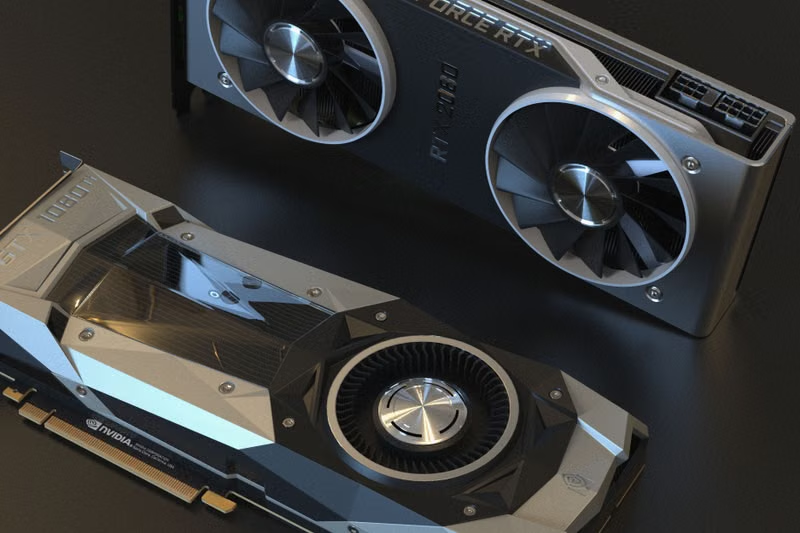
Performing a clean installation of drivers
Over time, registry entries and files from older driver versions can clutter your system, leading to conflicts that manifest as game crashes. A standard update is often insufficient to remove these remnants. To perform a clean installation, download the latest drivers for your specific GPU model from the manufacturer's website. Use a tool like Display Driver Uninstaller (DDU) while in Safe Mode to wipe all traces of the current driver before installing the new version.
This process ensures that no legacy settings or corrupted files interfere with the way the game communicates with your hardware. Many users report that this step alone eliminates the DXGI_ERROR_DEVICE_HUNG message, as it resets the driver's interface with the DirectX runtime to a clean, factory-default state.
Updating or rolling back GPU drivers
While the latest drivers are generally recommended, there are instances where a specific driver version might be buggy or incompatible with Apex Legends. If you recently updated your drivers and the crashes started immediately, consider rolling back to a previous, known-stable version. Conversely, if you are running an outdated driver, the game might be calling functions that your driver no longer supports properly.
Always check the official release notes for your GPU manufacturer. Sometimes, they release hotfixes specifically aimed at resolving stability issues in popular titles. If you are using third-party software to manage your GPU, such as overclocking utilities, ensure they are updated to the latest version as well, as these programs often hook into the driver at a low level and can cause instability if they are not synchronized with the driver's API.
System and Hardware Optimization
Disabling GPU overclocking and undervolting
If you have manually overclocked your GPU, the first step in troubleshooting should be reverting to stock clock speeds. Even if your GPU passed stress tests like FurMark or 3DMark, the specific load profile of Apex Legends can push the hardware in ways that reveal hidden instability. A slight fluctuation in voltage or a frequency spike that the system cannot handle will cause the driver to hang.
If you have undervolted your card for temperature reasons, try increasing the voltage slightly or returning it to the default factory curve. The goal is to establish a baseline of 100% stability. Once the game stops crashing at stock settings, you can gradually re-apply minor tweaks, but avoid pushing the hardware to its absolute limit if the error persists.
Power management and thermal considerations
Your PC's power plan can influence how much energy is delivered to the graphics card. Ensure that your Windows Power Plan is set to High Performance. This prevents the operating system from throttling the GPU or CPU to save energy during gameplay. Additionally, verify that your power supply is sufficient for your components. An aging power supply that cannot maintain a stable 12V rail under load will often cause the GPU to reset, triggering the DXGI error.
Check your system temperatures under load. If your GPU is hitting 85-90 degrees Celsius, it may be throttling. Ensure that your case has adequate airflow and that the GPU fans are spinning correctly. Cleaning the dust out of your PC case can drastically reduce temperatures and prevent the sudden performance drops that often precede a device hang.
Advanced Configuration File Tweaks
Modifying videoconfig.txt settings
Apex Legends stores its graphical settings in a file called videoconfig.txt, usually located in your user Documents folder. Sometimes, the game's menu does not correctly reset certain internal parameters. You can manually edit this file to force more stable settings. Locate the file and open it with a text editor like Notepad.
Look for lines like setting.mat_backbuffer_count or other advanced rendering flags. While editing this file requires caution, setting specific values such as reducing the backbuffer count or disabling certain post-processing effects via the config file can bypass limitations in the game's UI. Always create a backup of the file before making changes so you can restore it if the game fails to launch.
Repairing game files via Origin or Steam
Corrupted game files are a silent killer of stability. If a single texture file or shader asset is damaged, the engine may crash when it attempts to load that specific asset during a match. Both Steam and the EA App provide a built-in feature to verify the integrity of game files. This process compares your local files against the server-side versions and automatically replaces anything that is corrupted or missing.
Running this verification is a non-destructive process and should be done whenever you encounter recurring crashes. It is a quick and effective way to rule out installation issues without needing to perform a full re-download of the entire game, which can be time-consuming for users with slower internet connections.
Conclusion
Resolving the DXGI_ERROR_DEVICE_HUNG error in Apex Legends requires a methodical approach, starting from simple in-game adjustments and moving toward driver clean-installs and hardware verification. By reducing the texture streaming budget, ensuring your drivers are clean and updated, and verifying the integrity of your game files, you can address the vast majority of causes for this crash. If the issue persists after these steps, it is highly recommended to monitor your hardware for thermal or power-related failures, as the error is a definitive sign that the communication between your software and graphics hardware has been compromised.
Frequently Asked Questions
Does lowering the texture streaming budget decrease my FPS?
Generally, lowering the texture streaming budget has a negligible impact on your average FPS. In fact, it may improve your 1% low FPS, which is the metric that measures stuttering. By reducing the VRAM load, the GPU can process frames more consistently, leading to a smoother experience despite the slight reduction in texture resolution.
Can Windows updates cause this error?
Yes, sometimes Windows updates can conflict with existing graphics drivers. If you notice the error appearing after a major OS update, it is a good practice to reinstall your GPU drivers to ensure that the new OS kernel and the graphics driver are communicating correctly.
Is it safe to use third-party tools to fix this?
Only use reputable tools like DDU (Display Driver Uninstaller) or official manufacturer software (like NVIDIA GeForce Experience or AMD Adrenalin). Avoid generic registry cleaners or "game booster" software, as these often do more harm than good and can introduce further instability to your system.
Will reinstalling the game help?
Reinstalling the game is a last resort. Before doing so, always attempt to verify the integrity of your game files through your launcher. If verification fails to resolve the issue, a clean reinstall may be necessary to remove deeply rooted corrupted files that a standard verification process might miss.
References
- EA Help: Troubleshooting Graphics Issues in Apex Legends
- NVIDIA Support: Understanding DXGI Error Codes
- Steam Support: Verifying Game File Integrity
- Microsoft Learn: DirectX Graphics Infrastructure (DXGI) Overview