
Launching Fortnite only to be greeted by a persistent error message is a frustrating experience for any player. Error Code 20002, specifically related to the BattleEye Anti-Cheat service, acts as a digital gatekeeper that prevents the game from initializing properly. When the system detects that the anti-cheat module failed to load or verify its integrity, it shuts down the process to protect the game environment from potential exploits. This safety mechanism, while necessary for fair play, often triggers due to minor system glitches, outdated software, or conflicting background applications.
Understanding the root cause of this failure is the first step toward restoring your access to the Battle Bus. The error typically manifests when the BattleEye service is blocked by Windows security settings, corrupted during a previous update, or interrupted by third-party software. By following a systematic diagnostic approach, you can identify the specific point of failure and apply the necessary fixes to ensure that both Fortnite and its security architecture communicate seamlessly with your operating system.
Common Causes of BattleEye Initialization Errors
Software Conflicts and Security Restrictions
The most frequent trigger for this error involves security software or background processes interfering with the BattleEye service. Windows Defender or third-party antivirus programs often flag the anti-cheat executable as a suspicious background task if it attempts to hook into system memory during the initial boot sequence. This creates a false positive that results in the initialization process being terminated before the game can even reach the loading screen.
Additionally, virtual machine software, overclocking utilities, and certain screen recording tools may trigger the anti-cheat's defensive measures. BattleEye is designed to be highly sensitive to any software that attempts to read or modify the game's memory state. If your system is running utilities that provide an overlay or real-time performance tracking, the anti-cheat service may perceive these as potential threats, leading to the 20002 error code as a preventive security measure.
Corrupted Installation Files
Digital game distributions are prone to silent file corruption. If a single dynamic link library or a configuration file associated with the BattleEye service becomes damaged during a patch deployment or an unexpected power loss, the service will fail its integrity check. When the Fortnite launcher attempts to call the service, the mismatched checksums trigger an immediate abort, leaving the player stuck at the error prompt.
Furthermore, outdated versions of the Epic Games Launcher or the game files themselves can cause compatibility issues with the latest version of the anti-cheat. Epic Games frequently updates the anti-cheat infrastructure to counter new hacking methods, and if your local client has not successfully updated these specific modules, the communication handshake between the launcher and the service will inevitably fail.
Step-by-Step Troubleshooting Guide
Verifying Game Files via Epic Games Launcher
The most effective starting point is the built-in repair tool within the Epic Games Launcher. This process compares your local installation files against the official server-side manifest and automatically replaces any missing or corrupted components. To perform this, open the Epic Games Launcher and navigate to your Library, find Fortnite, click the three dots icon, and select Manage. From the menu, choose the Verify option.
This process may take several minutes depending on your disk speed and internet connection. Once the verification is complete, the launcher will inform you if any files were repaired. It is highly recommended to restart your computer after this process to ensure that all system registry entries related to the anti-cheat are correctly refreshed before attempting to launch the game again.
Manually Reinstalling the BattleEye Service
If verification does not resolve the issue, you may need to manually reinstall the BattleEye service. Navigate to your Fortnite installation folder, typically found in Program Files/Epic Games/Fortnite/FortniteGame/Binaries/Win64/BattleEye. Inside this folder, look for the uninstall file, run it, and then execute the install file to trigger a fresh installation of the anti-cheat module.
Following the manual reinstallation, verify that the service is set to start automatically in your Windows Services management console. Press the Windows key + R, type services.msc, and search for BattleEye Service. Ensure the Startup Type is set to Manual or Automatic. Right-click the service and select Start if it is currently stopped. This forces the service to register itself with the Windows kernel properly.
Advanced System Configuration Fixes
Updating Drivers and Windows OS
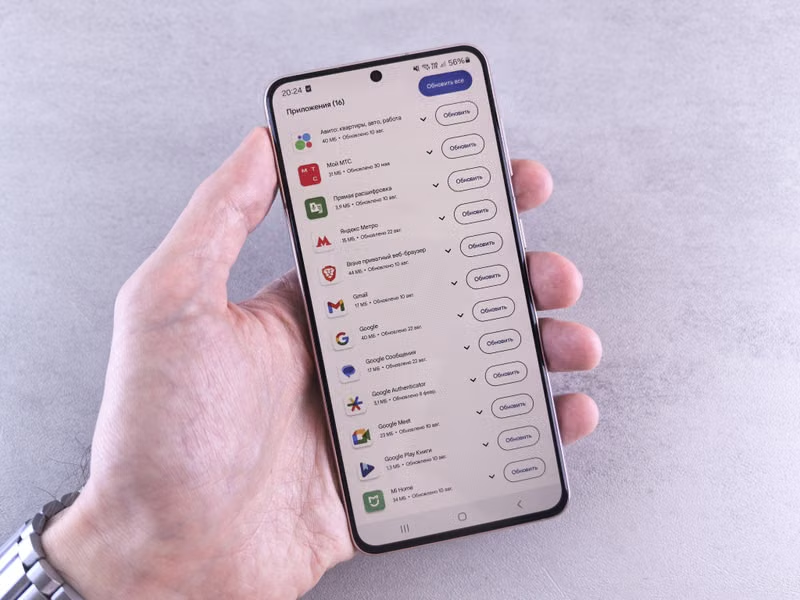
Outdated system drivers, particularly those related to your graphics card and chipset, can create environment instability that affects anti-cheat services. Ensure that you have the latest drivers from your hardware manufacturer's website. GPU drivers, in particular, often include patches that address compatibility with new game engines and security protocols.
Windows updates are equally critical. The operating system provides the underlying framework that allows services like BattleEye to communicate with hardware components. If your Windows build is severely outdated, the anti-cheat service may struggle to gain the necessary permissions or access to memory addresses, resulting in initialization failures. Run the Windows Update tool to ensure all cumulative updates are installed.
Managing Antivirus and Firewall Exceptions
If you suspect that your security software is causing the 20002 error, add an exception for the entire Fortnite folder in your antivirus settings. Most modern antivirus solutions allow you to create an exclusion list. By excluding the installation directory, you prevent the real-time scanner from interfering with the anti-cheat's operation during the game launch.
Similarly, check your Windows Firewall settings to ensure that both the Fortnite launcher and the BattleEye service are granted permission to communicate through both public and private networks. Blocking these processes can prevent the anti-cheat from successfully verifying your session with the Epic Games servers, which may manifest as an initialization error.
Performance Comparisons and Best Practices
| Fix Method | Efficiency | Difficulty |
|---|---|---|
| Verify Game Files | High | Easy |
| Reinstall BattleEye | Medium | Moderate |
| Driver Updates | Medium | Easy |
| System Registry Clean | Low | Advanced |
When implementing these fixes, keep a log of which steps you have taken. This helps prevent redundant efforts if the problem persists. It is also important to avoid running unnecessary background applications while playing. Close programs like MSI Afterburner, Rivatuner, or unauthorized macro software before starting the game, as these are frequent targets for anti-cheat detection algorithms that can lead to false positives and initialization errors.
Conclusion
Resolving Fortnite Error Code 20002 requires a methodical approach that addresses potential file corruption, service misconfiguration, and software interference. By utilizing the Epic Games Launcher's verification tools, manually refreshing the BattleEye service, and ensuring your system environment is free from conflicting security software, you can restore full functionality to your game. If the issue remains unresolved after these steps, performing a clean installation of the entire Fortnite client is the most reliable final solution to clear deep-seated system errors.
Frequently Asked Questions
Will reinstalling BattleEye result in a game ban?
No, reinstalling the official BattleEye service provided within the game files is a standard troubleshooting procedure and does not violate any terms of service. It is a legitimate way to fix corrupted components.
Can overclocking software trigger Error 20002?
Yes, some aggressive overclocking utilities are flagged by anti-cheat systems. If you experience this error, try disabling your overclocking software before launching the game to see if the issue persists.
How do I know if my antivirus is blocking the game?
Check your antivirus protection history or quarantine log. If you see entries related to Fortnite or BattleEye, it is likely that your security software is interfering with the game's initialization process.
Is Error 20002 the same as a permanent ban?
No, an initialization failure is a technical error related to the software's ability to load. It is fundamentally different from a ban message, which would explicitly state that your account has been restricted.
References
- Epic Games Support: Troubleshooting Fortnite Technical Issues
- BattleEye Official Documentation: Technical Support and Error Codes
- Microsoft Windows Support: Managing Services and Permissions