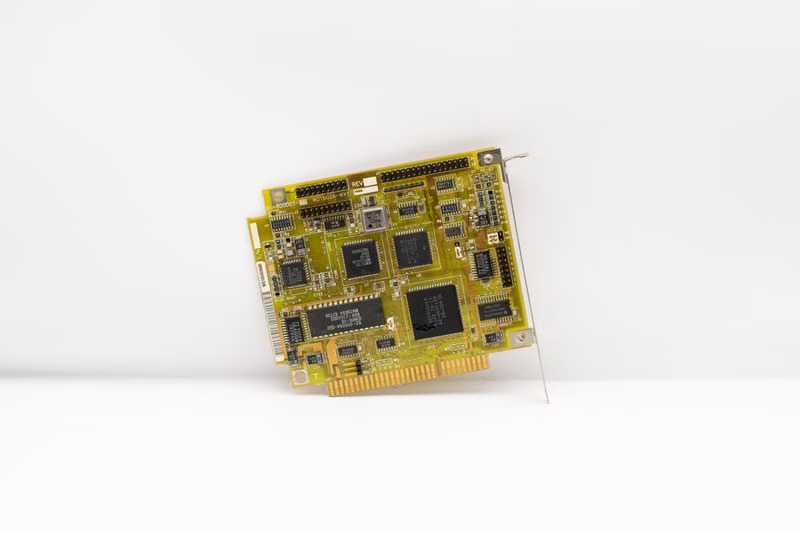
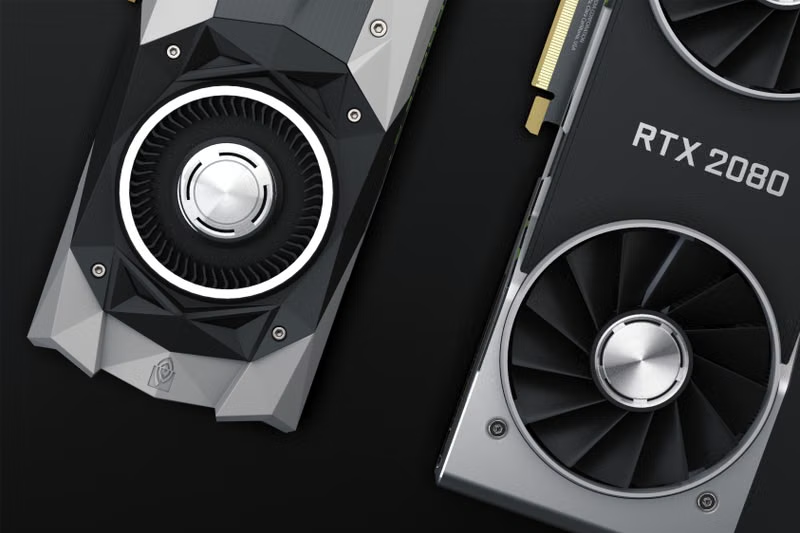
The DXGI_ERROR_UNSUPPORTED crash is a notorious technical hurdle for Apex Legends players, often manifesting during the initial launch sequence or during intense gameplay sessions. This error specifically relates to the DirectX Graphics Infrastructure (DXGI) failing to communicate correctly with your hardware, usually because the game engine demands a specific feature level that your current graphics card configuration or driver set cannot provide. It is a communication breakdown between the software instructions and the physical processing power of your GPU.
Understanding this error requires looking beyond simple game files. It typically points toward a mismatch between the DirectX version Apex Legends is attempting to utilize and the feature level supported by your graphics hardware. Whether you are using an older GPU that lacks the necessary API support or a modern card with corrupted driver settings, the issue requires a methodical approach to restore stability. This guide explores the root causes and provides actionable steps to rectify these crashes effectively.
What Causes DXGI_ERROR_UNSUPPORTED in Apex Legends
Understanding DirectX Feature Levels
DirectX feature levels are a hierarchy of capabilities within the DirectX API. When a game like Apex Legends launches, it queries your graphics card to ensure it meets the minimum hardware requirements defined by the engine. If the query returns a value lower than the required level, the engine triggers the DXGI_ERROR_UNSUPPORTED code to prevent a hard crash or graphical corruption. This is essentially a safety mechanism designed by the developers to protect your system from rendering tasks your hardware is not equipped to handle.
In many cases, this is not indicative of a broken graphics card but rather a software-level limitation. If you are running an older GPU, the card may physically lack the hardware architectural requirements for newer DirectX features. However, even on modern cards, this error can appear due to outdated drivers, incorrect API calls, or conflicts with Windows background processes that are currently reserving GPU resources for other tasks.
The Role of Launch Options in Troubleshooting
Launch options are command-line arguments that tell the game engine how to behave before it even fully initializes. For many players, forcing a specific GPU feature level via these settings is the primary method for bypassing the error. By manually defining the feature level, you are essentially telling the game to ignore its automated detection process and attempt to run within a specific set of parameters that your hardware is known to support.
While this is an effective workaround, it is important to note that launch options are not a universal cure. They act as a bridge. If the underlying issue is a lack of physical hardware support for the required DirectX version, launch options may only delay the inevitable crash. Therefore, it is essential to combine these software tweaks with proper driver maintenance and system updates to ensure long-term stability.

How to Use Launch Options to Fix the Error
Configuring Steam Launch Arguments
For players using the Steam platform, modifying launch options is a straightforward process. Navigate to your library, right-click on Apex Legends, and select Properties. In the General tab, you will find a text box labeled Launch Options. To address GPU errors, you can input specific commands like -dxlevel 110 or -dxlevel 101 to force the game into a more stable DirectX 11 or 10 environment, respectively.
After entering the command, it is recommended to launch the game to test stability. If the game launches, you may want to gradually increase the feature level or remove the command once the cache has been rebuilt. Always ensure that you are not using conflicting commands, as combining multiple graphics settings can sometimes lead to further instability or decreased performance during gameplay.
Configuring EA App Launch Arguments
If you are playing through the EA App, the process is slightly different but follows the same logic. Locate Apex Legends in your collection, click on Manage, and then select View Properties. From there, you will see an Advanced Launch Options section. Much like Steam, you can input your desired command-line arguments here.
It is important to remember that these changes are persistent. If you encounter a new error or performance degradation after applying a specific launch option, you should immediately return to this menu and clear the text box. Maintaining a clean launch configuration is vital for troubleshooting, as it ensures that you are not creating new problems while trying to solve the original DXGI error.
Updating Graphics Drivers and System Software
Clean Reinstallation of GPU Drivers
Outdated or corrupted drivers are the most common culprit for DXGI errors. Even if you have the latest version installed, a clean reinstallation using a utility like DDU (Display Driver Uninstaller) is often necessary to remove residual files from previous versions. These remnants can cause conflict with the game's DirectX calls, leading to the unsupported feature level message.
Once you have performed a clean wipe, download the latest drivers directly from the manufacturer's website—NVIDIA, AMD, or Intel. Avoid using third-party driver update tools, as they may provide generic drivers that do not include the specific optimizations required for Apex Legends. A clean, official install ensures that your GPU is communicating correctly with the Windows DirectX runtime environment.
Windows Update and DirectX Runtime
The DirectX runtime environment is deeply integrated into Windows. If your operating system is out of date, it may be missing critical security patches or API updates that Apex Legends relies on. Ensure that your Windows version is updated to the latest build available in your region. This often includes background updates to the DirectX framework that are not visible in the standard update list.
Additionally, you can manually verify your DirectX files by running the DirectX End-User Runtime Web Installer from the official Microsoft support portal. This utility scans your system for missing or corrupted DLL files and replaces them, which often resolves technical errors that are mistakenly attributed to hardware failures.
Advanced Troubleshooting Methods
Disabling Overlays and Background Software
Overlay applications, such as Discord, Steam, or NVIDIA GeForce Experience, often hook into the game's rendering pipeline. This can sometimes interfere with how the game communicates with your GPU, causing the DXGI_ERROR_UNSUPPORTED crash. Try disabling these overlays one by one to see if the game launches successfully without them.
Background recording software or system monitoring tools can also cause similar conflicts. If you are using software to track your FPS or system temperatures, consider turning these off during your testing phase. If the game stabilizes after disabling these programs, you have identified a software conflict rather than a hardware limitation.
Verifying Game File Integrity
Sometimes the error is caused by a corrupted installation file related to the DirectX configuration within the game folder. Both Steam and the EA App provide a built-in feature to verify the integrity of your game files. This process compares your local files against the official server version and automatically repairs or replaces any files that appear damaged or missing.
This is a non-destructive process, meaning you will not lose your game settings or personal progress. It is a standard procedure that should be performed whenever you experience persistent crashes, as it eliminates the possibility that a simple file corruption is triggering the GPU feature level warning.
Conclusion
Resolving the DXGI_ERROR_UNSUPPORTED error in Apex Legends requires a systematic approach, starting with the application of specific launch options to bypass immediate compatibility triggers, followed by a thorough verification of your graphics drivers and system files. By ensuring that your hardware is properly supported by the latest official drivers and that no background software is interfering with the DirectX rendering pipeline, you can effectively stabilize the game and restore your ability to play without constant crashes.
Frequently Asked Questions
Does using launch options decrease my game performance?
In most cases, using launch options like -dxlevel 110 will have a negligible impact on performance. However, forcing an older DirectX version may result in the loss of certain visual effects or slight variations in frame rate stability. It is a trade-off between playability and visual fidelity.
What if the error persists after updating my drivers?
If the error continues after a clean driver installation, the issue may be related to a hardware limitation where your GPU simply does not support the DirectX feature level requested by the current version of Apex Legends. In this scenario, you may need to look for specific community-made config files or consider a hardware upgrade.
Can I delete my launch options later?
Yes, you can and should remove launch options once the game is stable. Keeping unnecessary command-line arguments can sometimes prevent the game from utilizing new optimizations provided in future updates, so it is best to keep your launch configuration empty unless you are actively troubleshooting.
Is this error specific to NVIDIA graphics cards?
No, the DXGI_ERROR_UNSUPPORTED error is an API-level issue and can occur on any GPU brand, including AMD and Intel. The troubleshooting steps provided in this guide are universal and apply to all graphics hardware manufacturers.
References
- Microsoft Support: DirectX Graphics Infrastructure (DXGI) Overview
- Electronic Arts Help: Troubleshooting Apex Legends Graphics Crashes
- Steam Support: Setting Launch Options for Games